Learn how to interpret each element of the FormFlow card—what it tells you, how it functions, and how users interact with it based on their assigned role.
Parts of a FormFlow Card
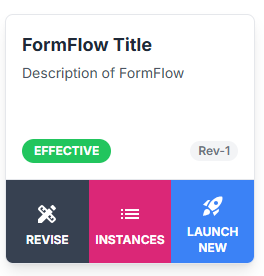
Once a FormFlow has been created, it appears as a card on the FormFlow Templates dashboard. This card provides a snapshot of key details and interactive options associated with that FormFlow. Below is a breakdown of each part of the card and its purpose:
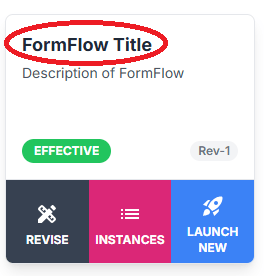
FormFlow Title
- Required. This is the name of your FormFlow. It should be clear and descriptive to help users easily identify the content and purpose of the FormFlow.
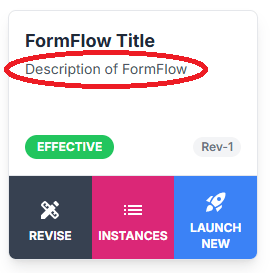
FormFlow Description
- Required. This field offers additional context about what the FormFlow is for. A well-written description helps users understand the objective and application of the FormFlow at a glance.
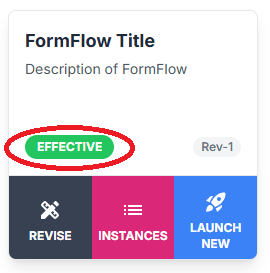
Status
- Indicates the current state of the FormFlow. Possible values include:
- Draft – The FormFlow is still being developed or edited.
- Effective – The FormFlow has been published and is live.
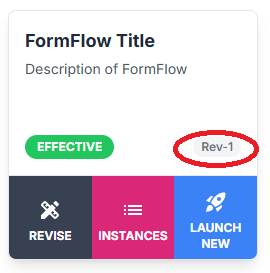
Revision ID
- Shows the current revision level of the FormFlow (e.g., Rev-1, Rev-2). This identifier helps track changes and ensures users are always working from the correct version.
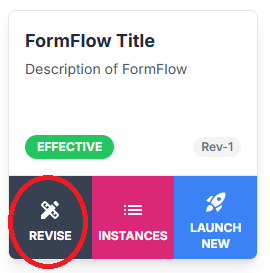
Revise Tab
- Used to create a new version of the FormFlow. Only users with Editor permissions can revise a FormFlow. Unlike documents, FormFlows can be in one of three statuses:
- Draft
- Effective
- Expired (automatically applied when a new revision is published—users cannot set an expiration manually).
Instances Tab
- Displays all open and closed instances of that FormFlow. Clicking this tab allows users to review historical records and track ongoing or completed workflows.
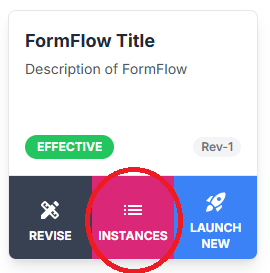
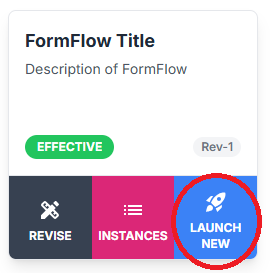
Launch New Tab
- Allows users assigned as Launchers to initiate a new instance of the FormFlow. This function begins the workflow process based on the predefined template.