Qlutch QMS users can now export all data from launched FormFlow instances into Excel for reporting and audit purposes. This guide walks through how to use the new “Instance Export” feature from the template detail view.
Guide date: 2025-09-30
Learn how to export all completed FormFlow instances associated with a specific template into an Excel file, including all captured data fields across every step.
This feature allows users to download a full record of all launched FormFlow instances for a specific template, in Excel. It includes every field across all steps within each instance — making it easy to analyze data outside the system.
Requirements:
You must have Editor or Launcher access to the FormFlow template.
At least one instance must have been launched from the template.
Step 1: Navigate to the FormFlow Instance List
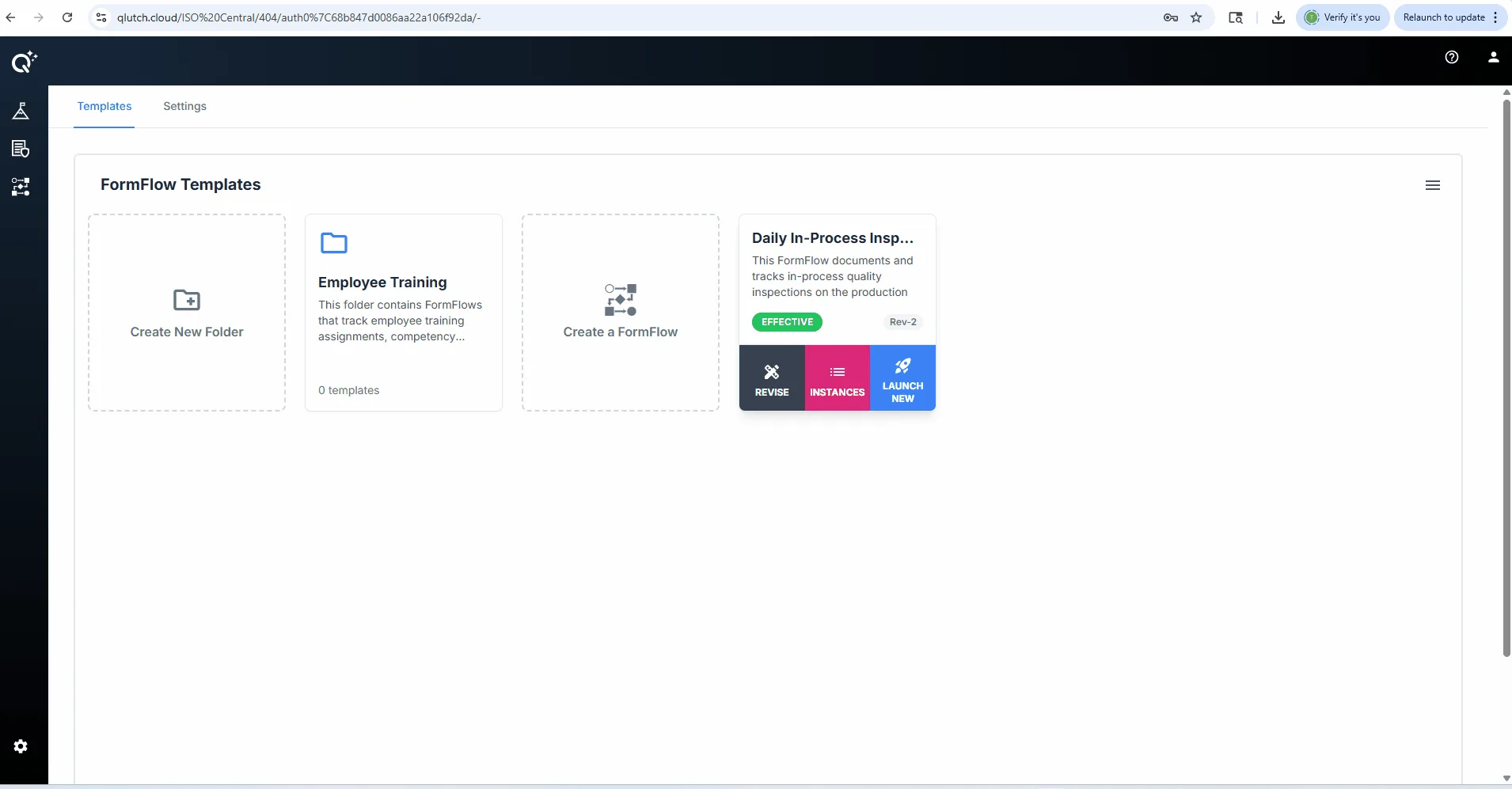
Locate the template you wish to export data for.
Click the "Instances" tab on the template card.
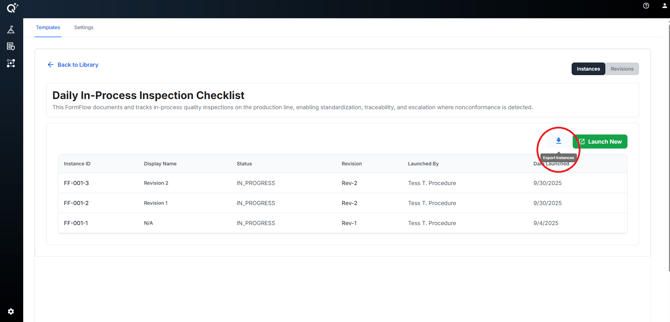
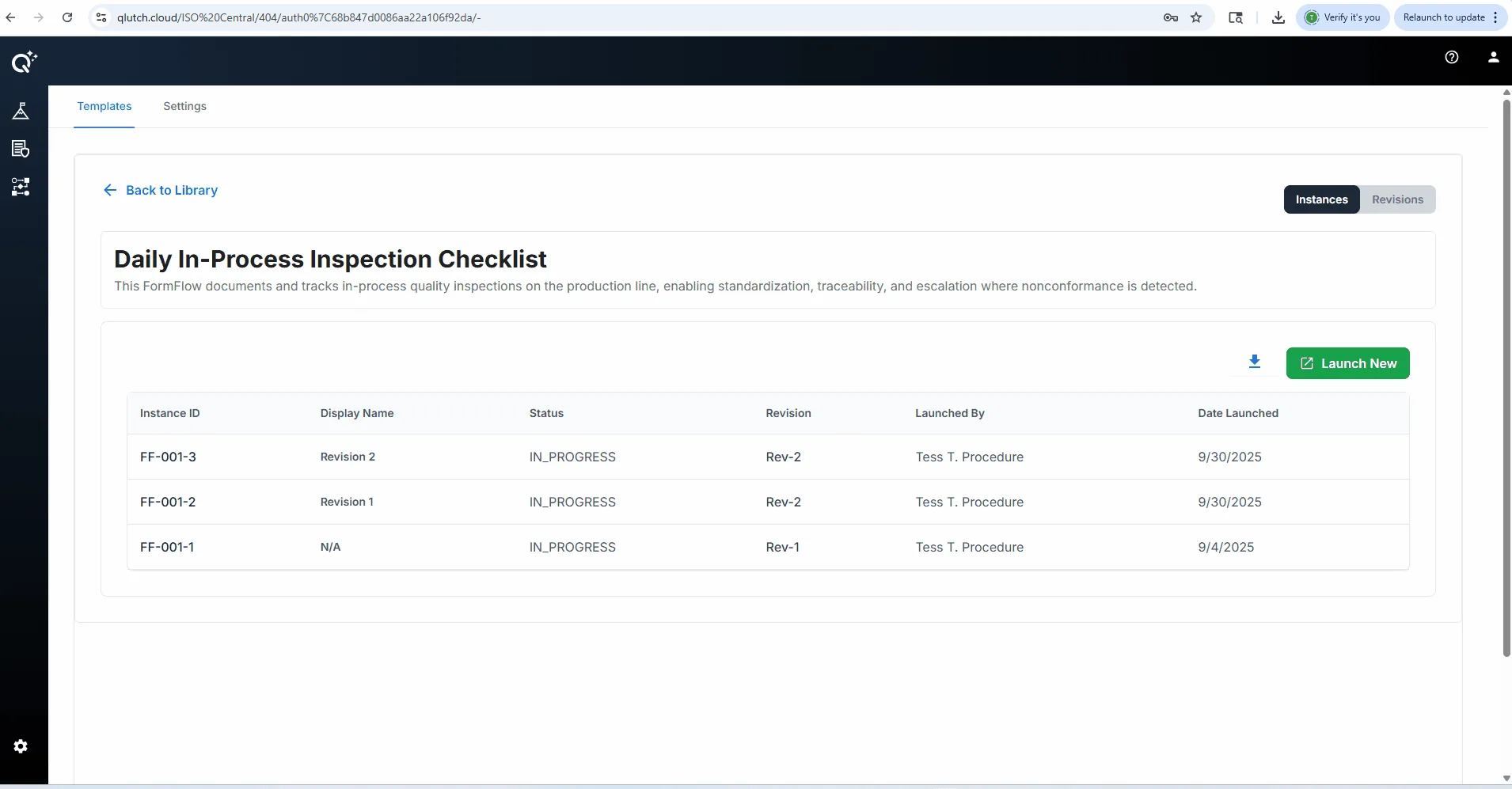
Step 2: Click Export Instances Button
Locate and click the "Export Instances" button.
Step 3: Download the Excel File
Your export will download automatically as a .xlsx file.
File is tabbed with each sheet representing a FormFlow Revision.