Learn how licensed Admin users can download all contents of a document folder in Qlutch’s DocControl module. This step-by-step guide demonstrates how to efficiently export folder files for review, backup, or offline use—ensuring quick access and streamlined document management.
Guide date: 2025-09-04
This article provides a step-by-step guide for licensed Admin users to download all Document contents from a Folder within the Qlutch DocControl app. This feature supports streamlined Document access, backups, and external reviews—all in just a few clicks.
Step 1: Navigate to the Desired Folder
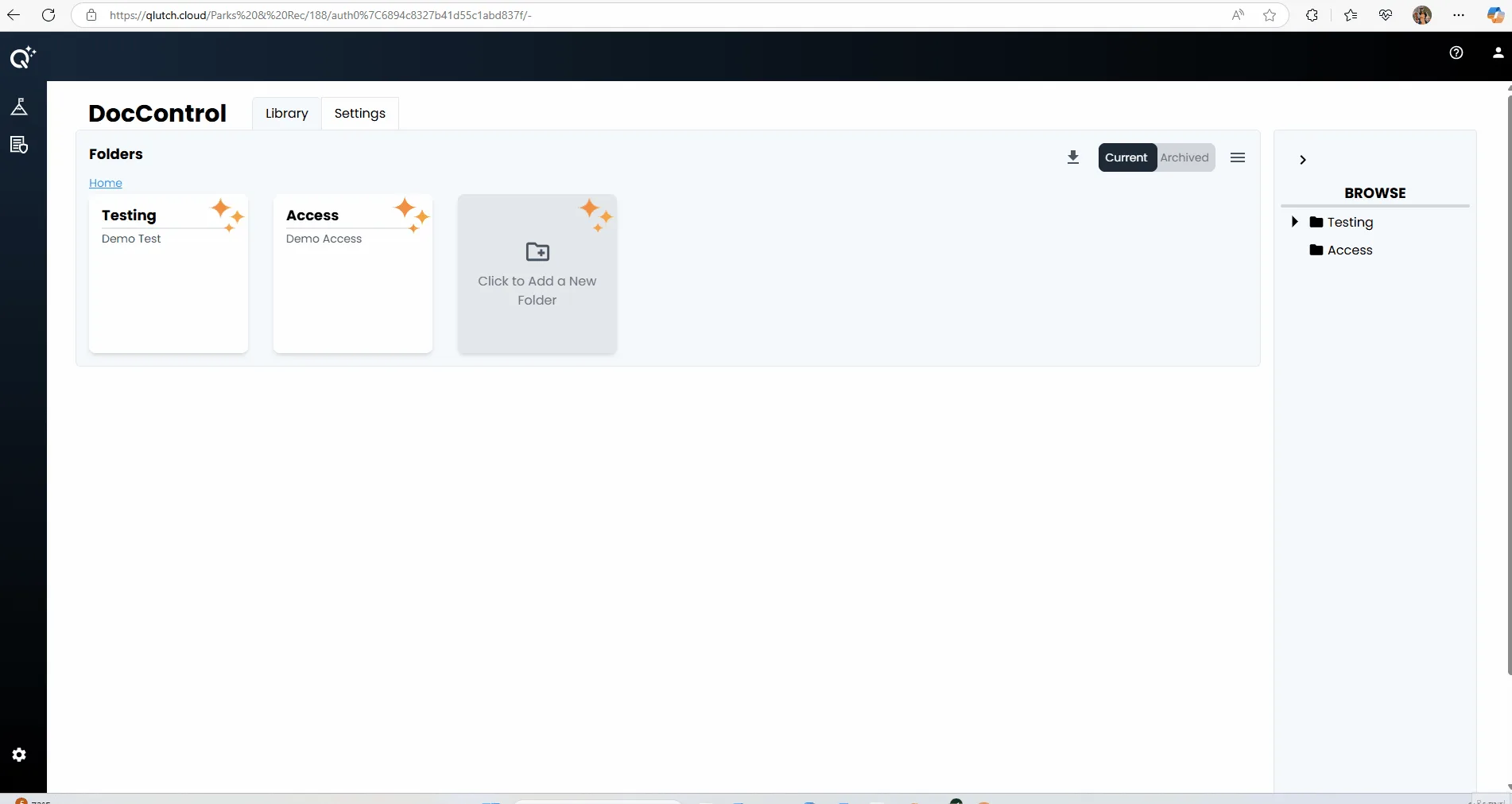
From theDocControl Library, select the folder you wish to download content from.
You must be in the Current tab (not Archived).
Step 2: Locate the Folder Download Icon
In the top-right area of the folder view, locate the download icon (downward arrow).
This icon is only visible to users with Admin-level permissions.
Step 3: Click the Download Icon
Click thedownload button.
A ZIP file containing all documents within the folder will automatically begin downloading.
The download will include all current version files associated with documents in the folder.
Step 4: Open the Downloaded ZIP File
Locate the ZIP file in your device’s Downloads folder.
Extract the contents to view or manage the documents as needed.