How Users complete their Acknowledgement tasks by reviewing and confirming they’ve understood Document revisions—ensuring your organization maintains accountability and compliance.
1. Document Status to Generate Acknowledgements:
- A Document's settings determine which lifecycle status (either Published or Effective) will automatically generate required acknowledgements for assigned Users.
- Admin have the ability to update the Document status to generate Acknowledgements, at any time.
2. Notification of Acknowledgement:
-
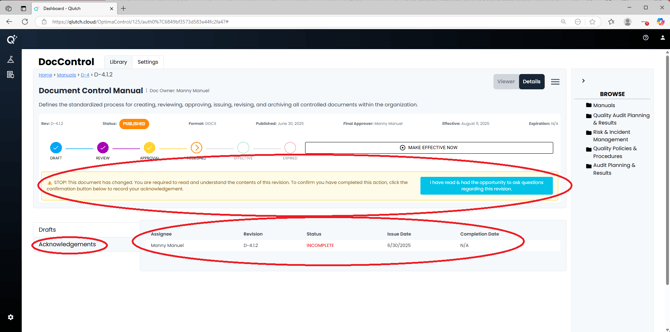
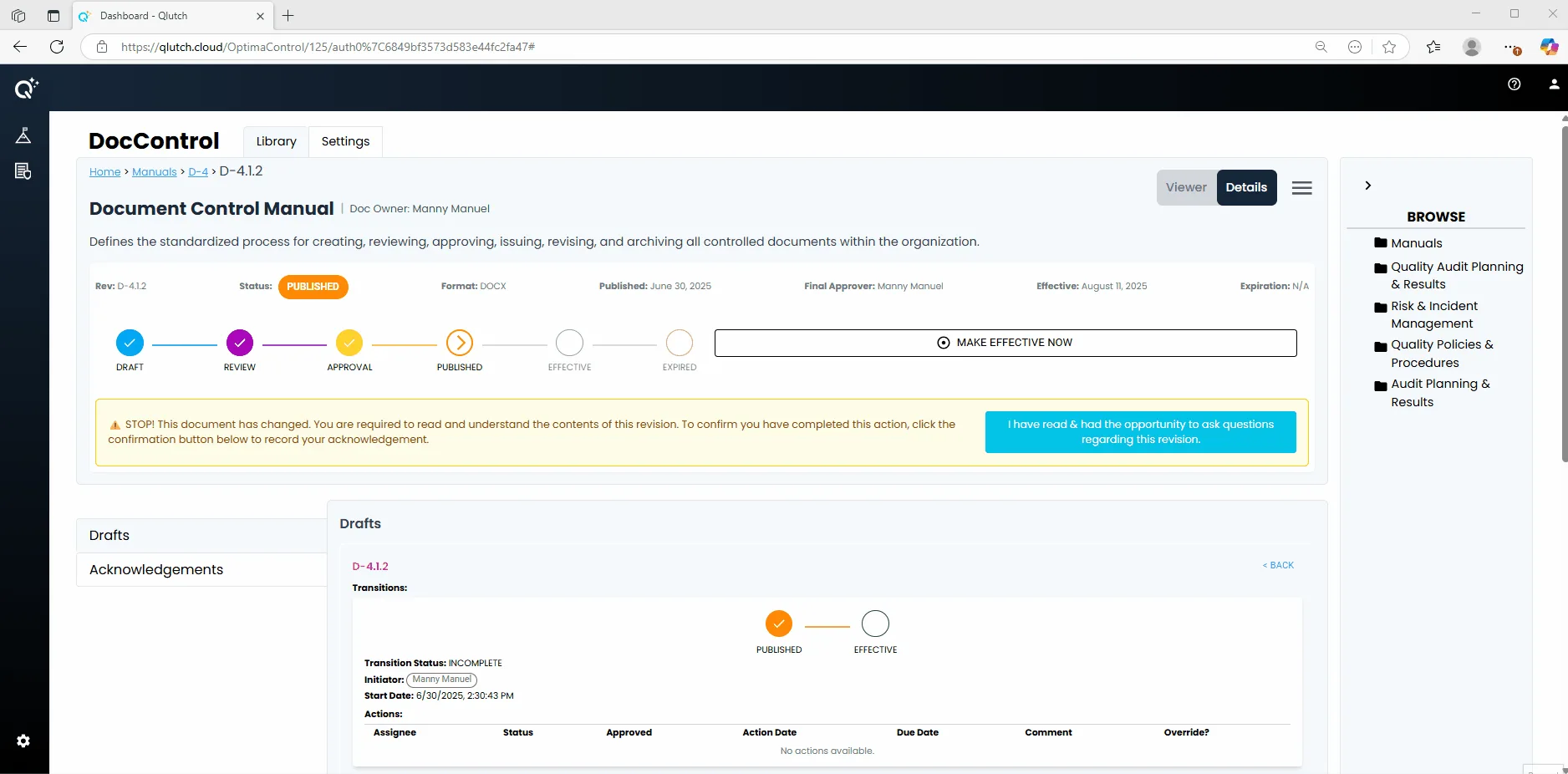
If Acknowledgements are required, a yellow notification banner will appear in the Document Information Revision section.
- The banner will instruct you to read and understand the contents of the Document.
- It will also include a confirmation button to officially record your Acknowledgement.
3. Complete the Acknowledgement:
- When ready, click the blue confirmation button stating you have read and had the opportunity to ask questions regarding this Revision.
- This records your Acknowledgement in the system, ensuring compliance tracking.
4. Verify Your Acknowledgement:
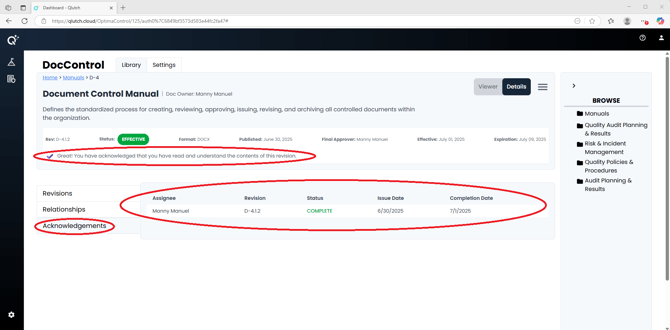
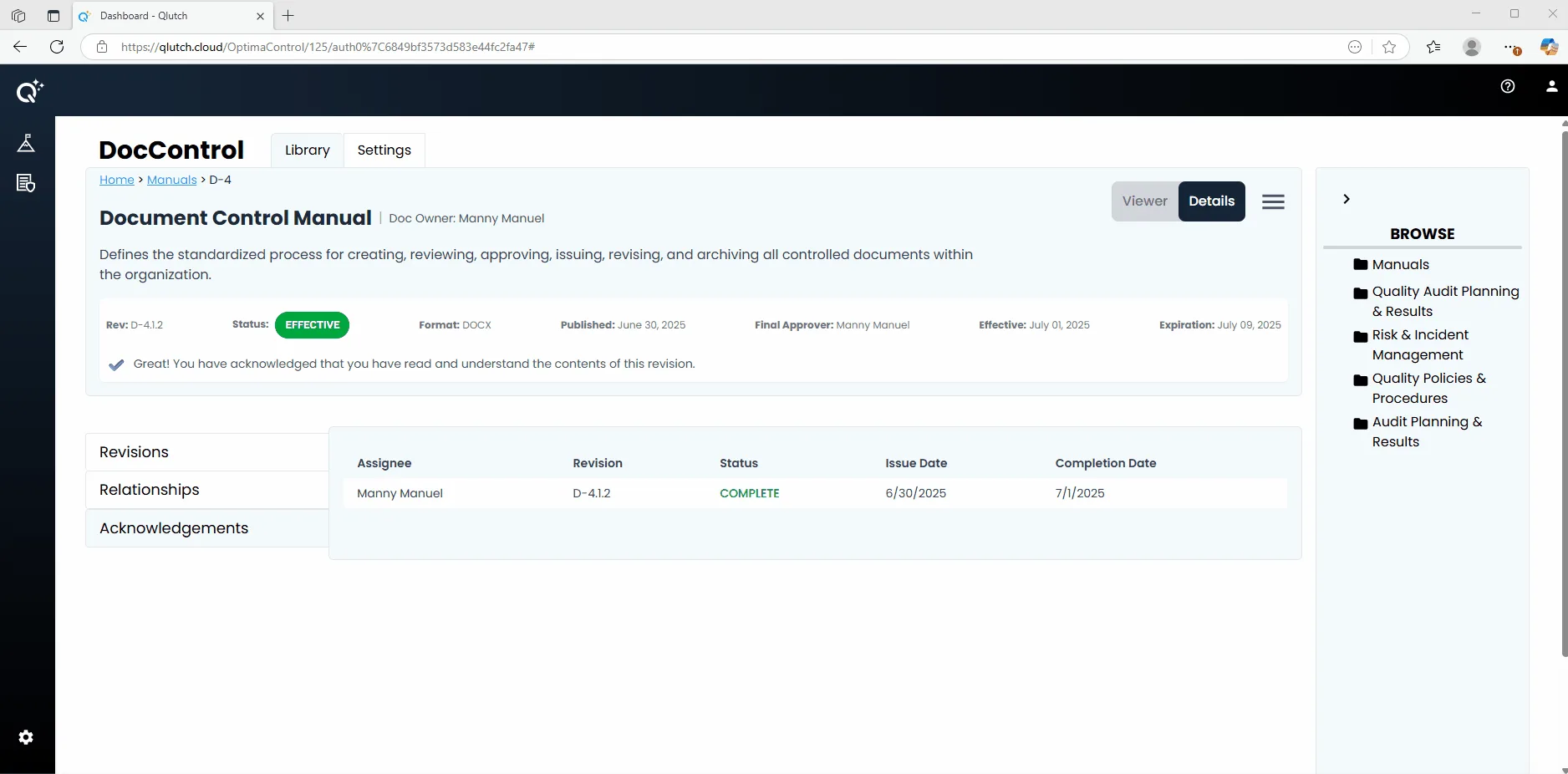
- Once completed, a success message will replace the initial banner.
- In addition, the Acknowledgements tab will update to show your Acknowledgement status as COMPLETE, along with the issue and completion dates.