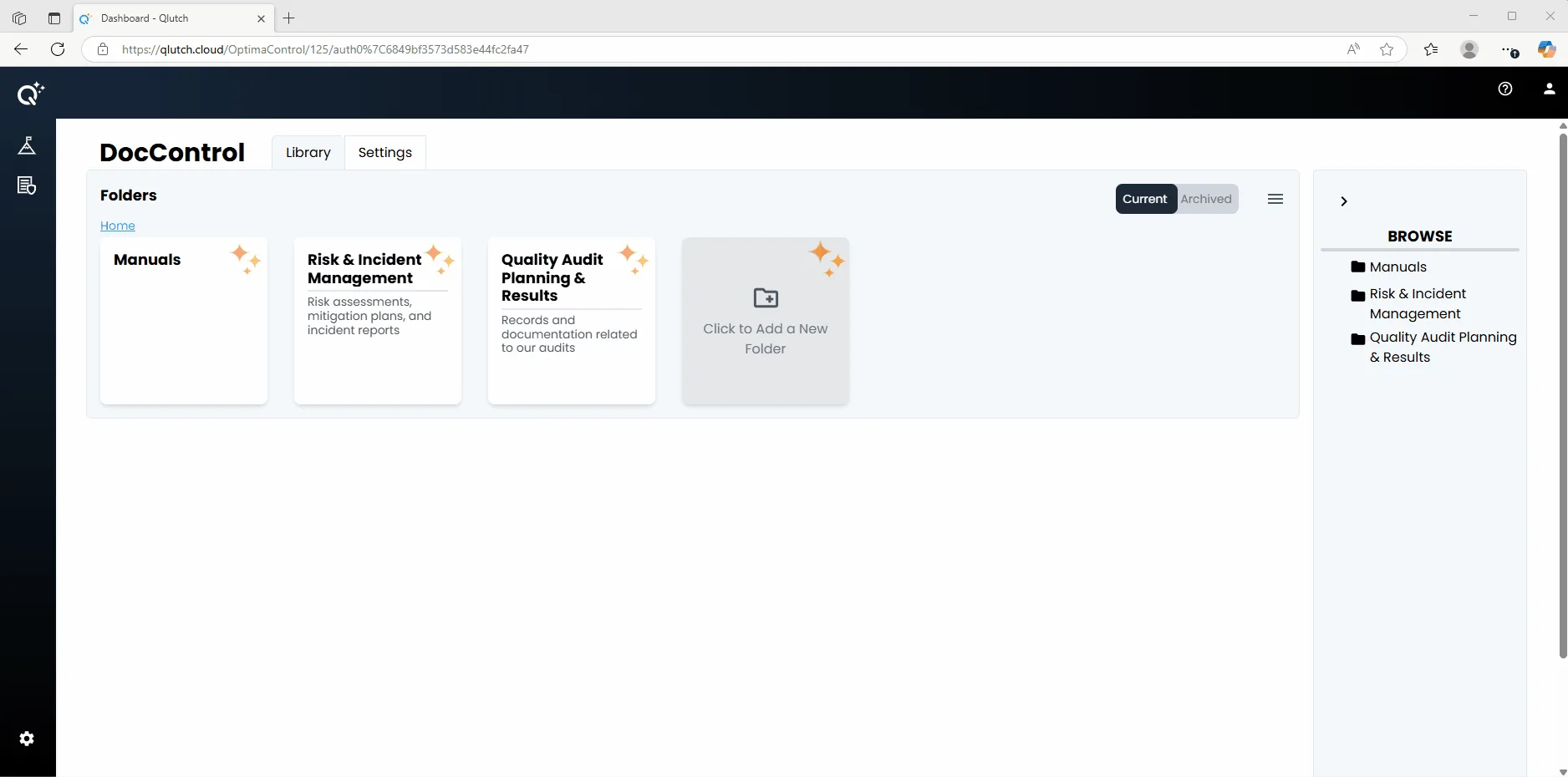
Easily update Folder settings in Qlutch's DocControl module by entering a Folder name, optional description, and assigning Folder managers who can organize content and manage access. Finalize the setup by applying or skipping Doc defaults.
Guide date: 2025-09-04
Folders allow you to organize documents by category, department, or function—providing a structured and efficient way to manage and access related files within the system.
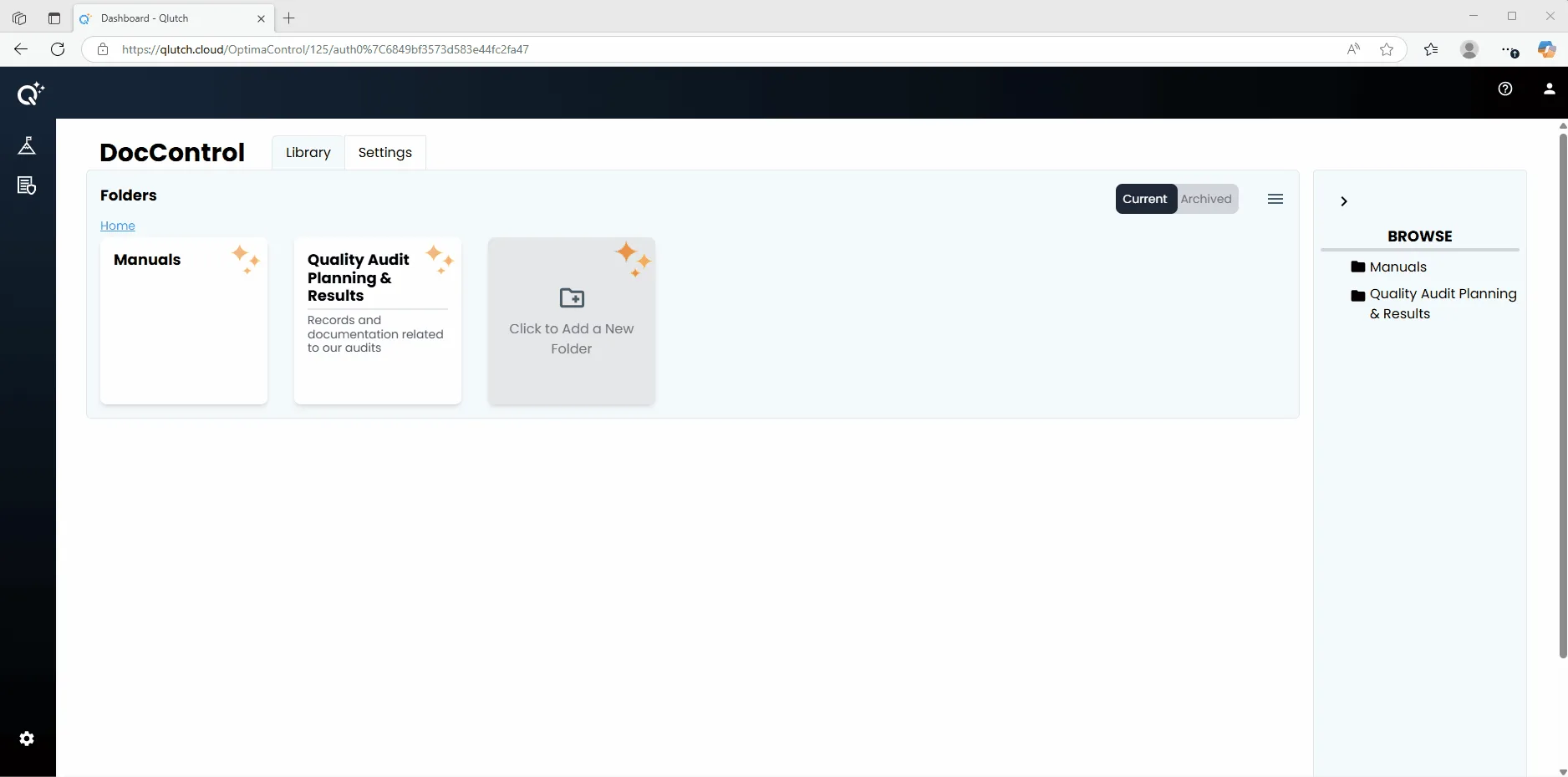
1. Click to Add a New Folder.
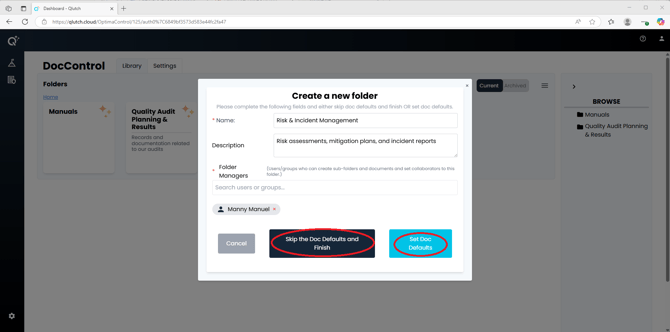
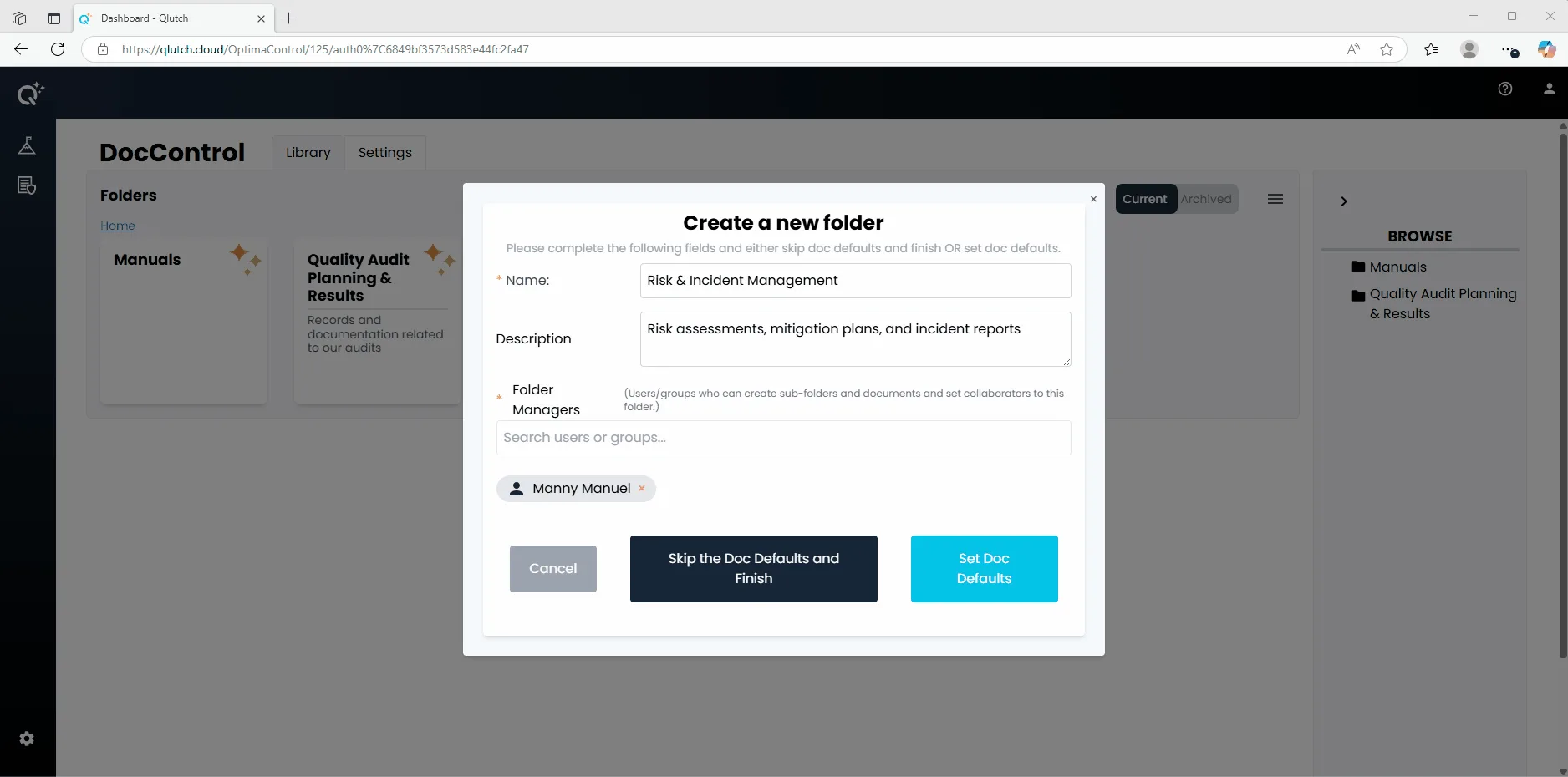
Create a name for the Folder.
Providing a name is required. The name of the Folder is essentially the category identifier for the documents that it will contain.
Provide a description for the Folder.
Providing a description is optional. The description is used to help provide extra information to a User as to what the Folder should contain.
Assign Folder Managers.
Assigning Folder Managers is required. Users and/or Groups assigned as Folder Managers are granted permission to create subfolders and documents, as well as set collaborators to this Folder.
2. Select either Skip the Doc Defaults and Finish - OR - Set Doc Defaults.
Set Doc Defaults:
Clicking this moves you to step 2 of 3, which is the beginning of Doc Defaults.
Skip the Doc Defaults and Finish:
Setting Doc Defaults is an optional function. Skipping this allows you to create the Folder without assigning the Doc Default settings.
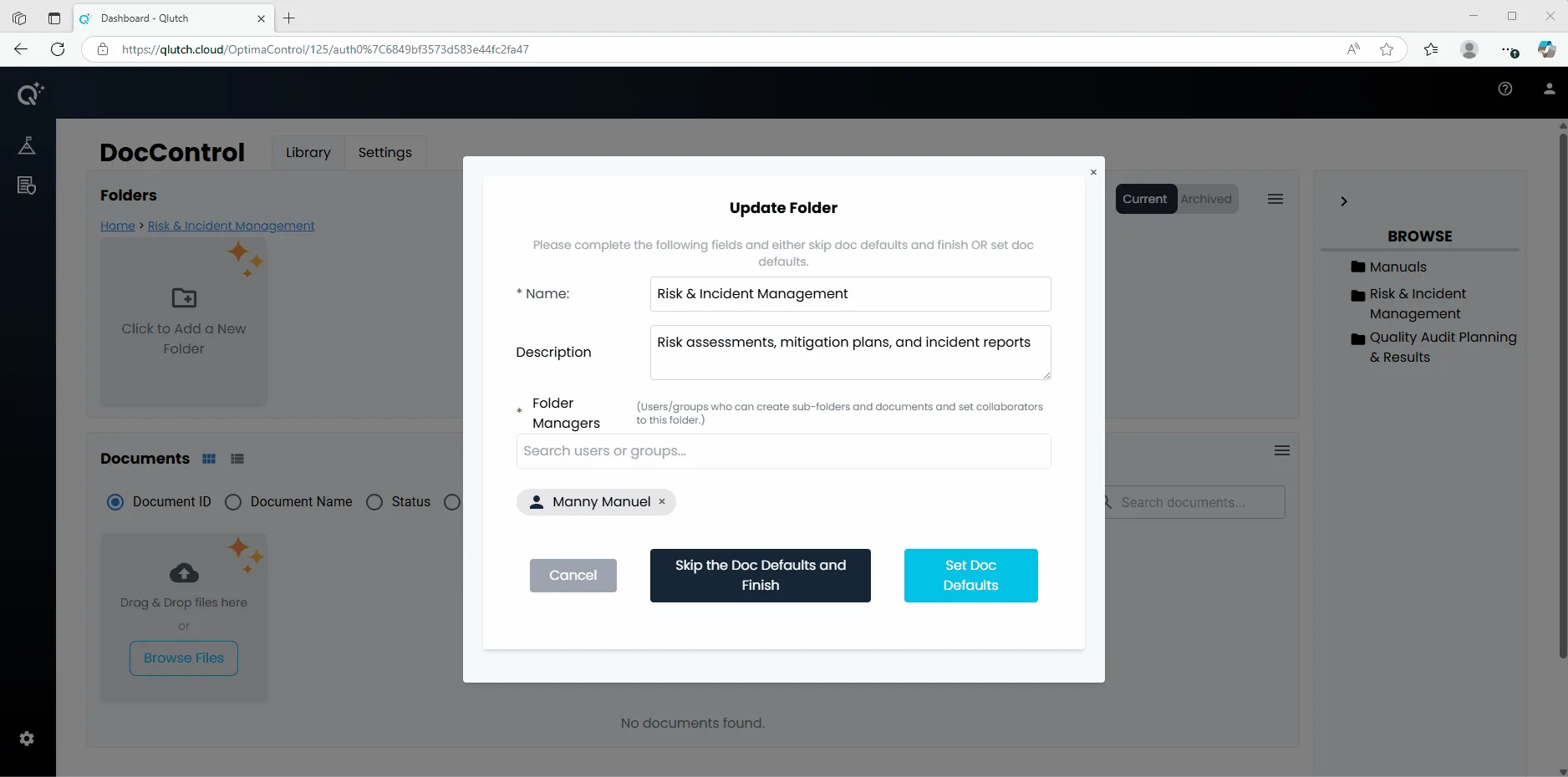
If you initially chose to skip setting Doc Defaults during folder creation, you can configure them later by accessing the following option:
In DocControl, select the existing Folder you want to apply Doc Defaults to.
Click the Hamburger icon in top left of the Folders window.