Learn how to Archive individual Documents in Qlutch to lock them from changes, maintain historical records, and keep your active workspace clean. Check the archived record and the current archive behaviour against your retention and review requirements. Archiving does not by itself establish compliance.
Guide date: 2025-09-04
Archive individual Documents in Qlutch, securing them in a read-only state to preserve historical integrity. Use the archive function to separate historical Documents from active work. Confirm the current read-only behaviour, permissions and retention requirements before relying on it.
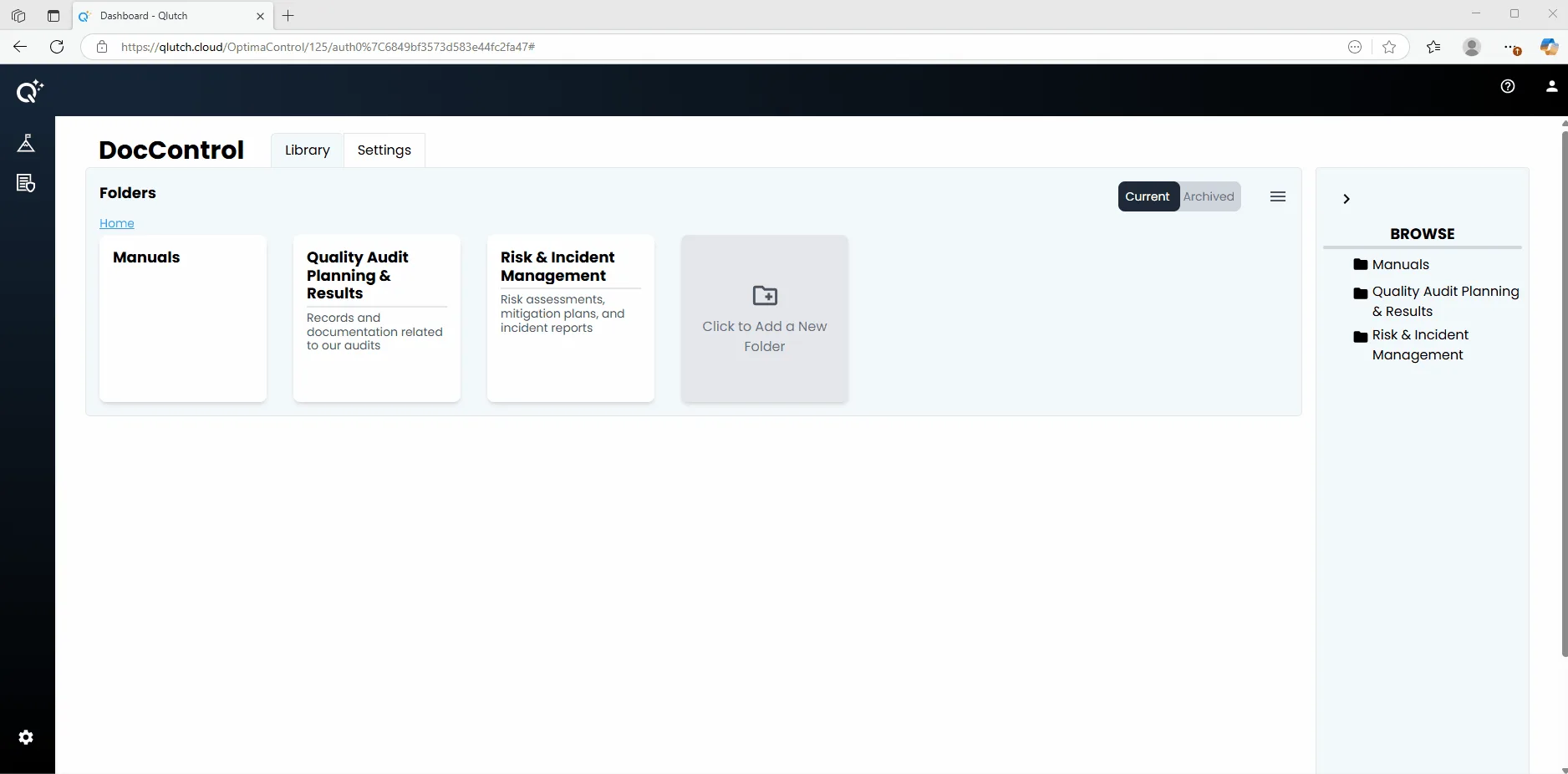
1. Locate and Open the desired Folder, then click on the Document to Archive:
Find and click on Folder housing the Document you want to archive, either from the Folders pane or the Browse Tree pane.
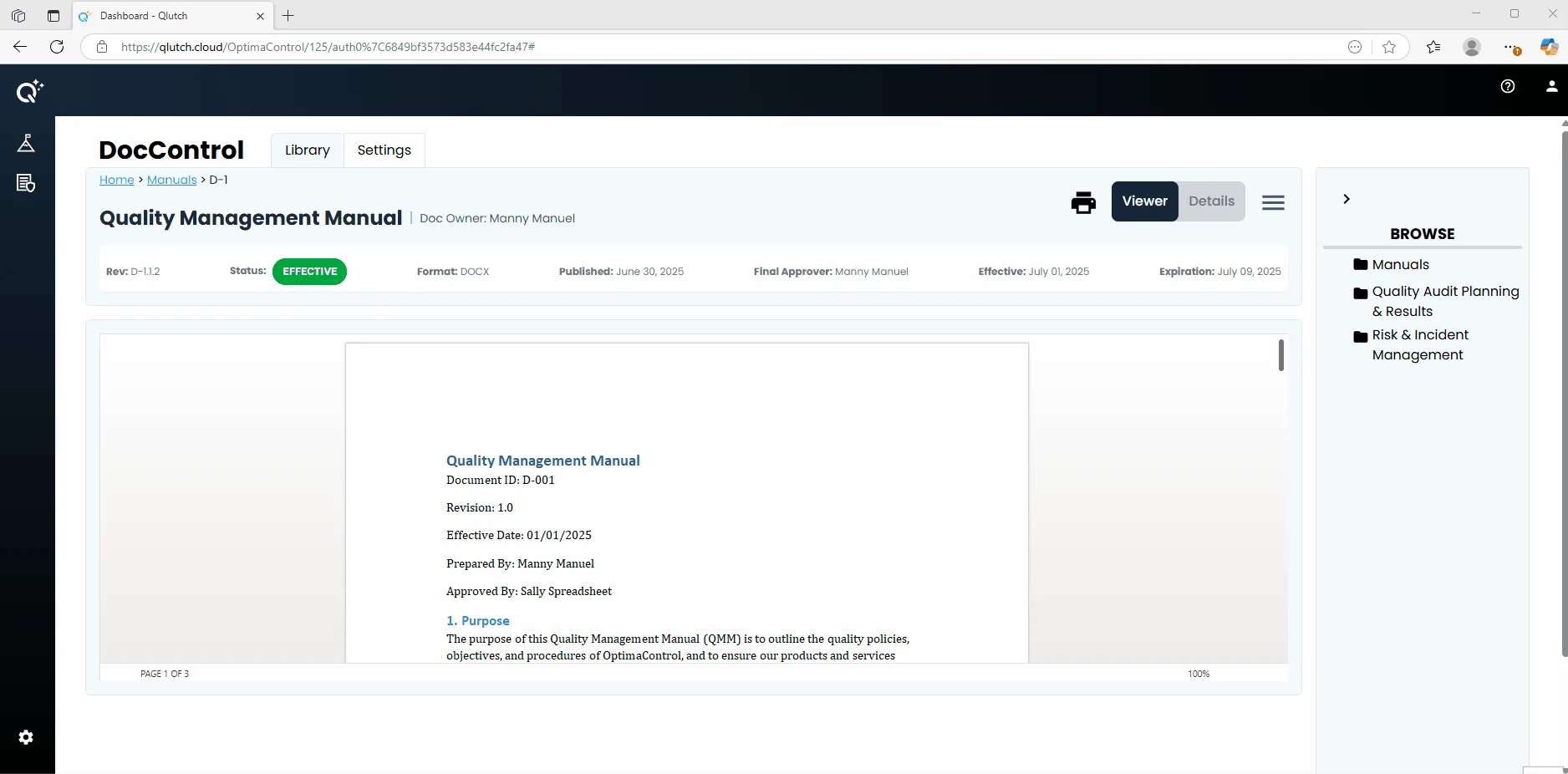
Once in Folder, click on the Document you want to archive.
2. Archive Document:
Click on the Hamburger Menu at the top right corner of the selected Document's pane. Then click Archive Document.
3. Confirm Archive:
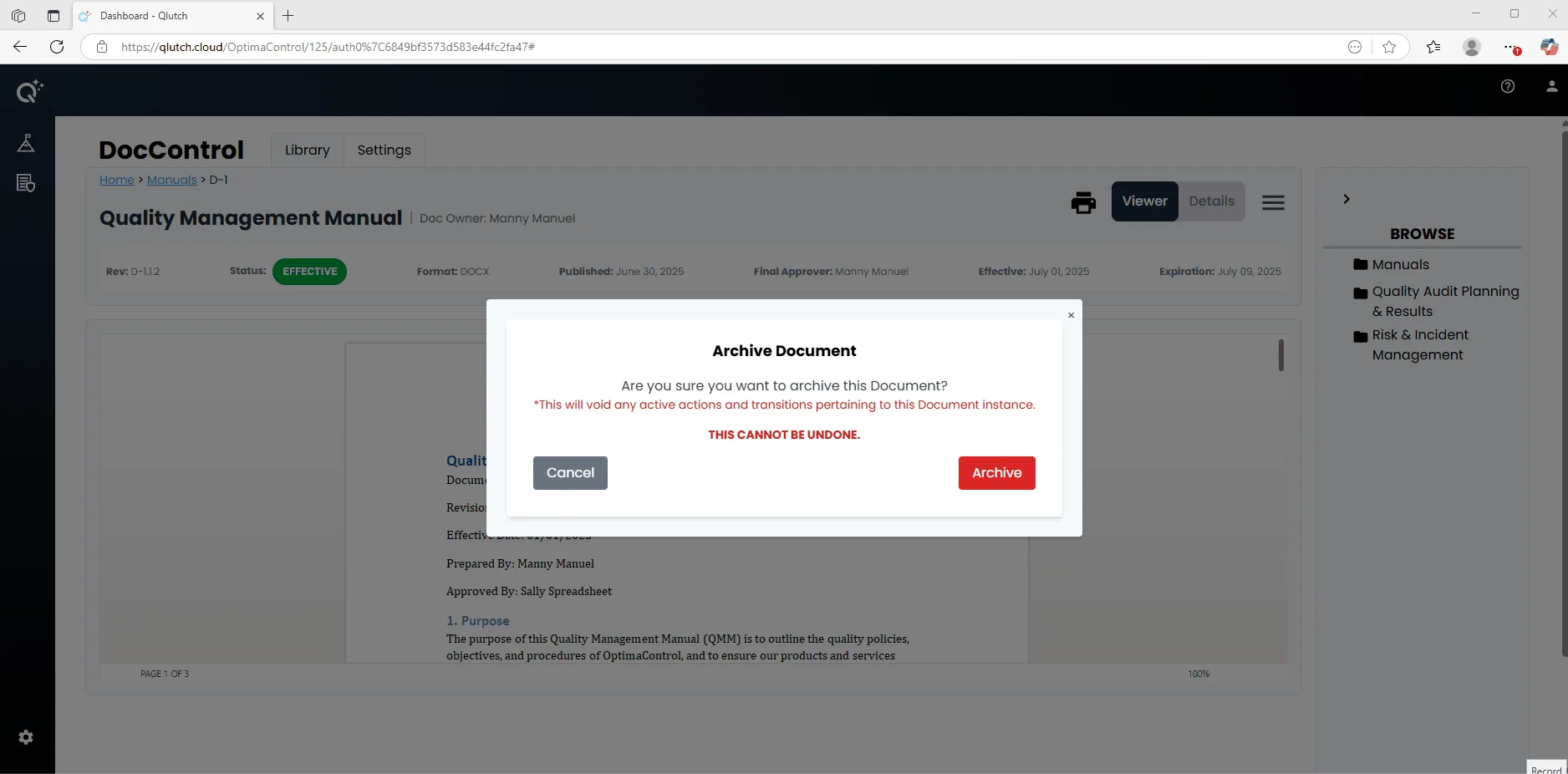
You will be prompted to confirm this action since Archiving is permanent and cannot be undone.
Acknowledge this warning that informs you this action will void any active actions and transitions pertaining to this Document instance by clicking the red Archive button.
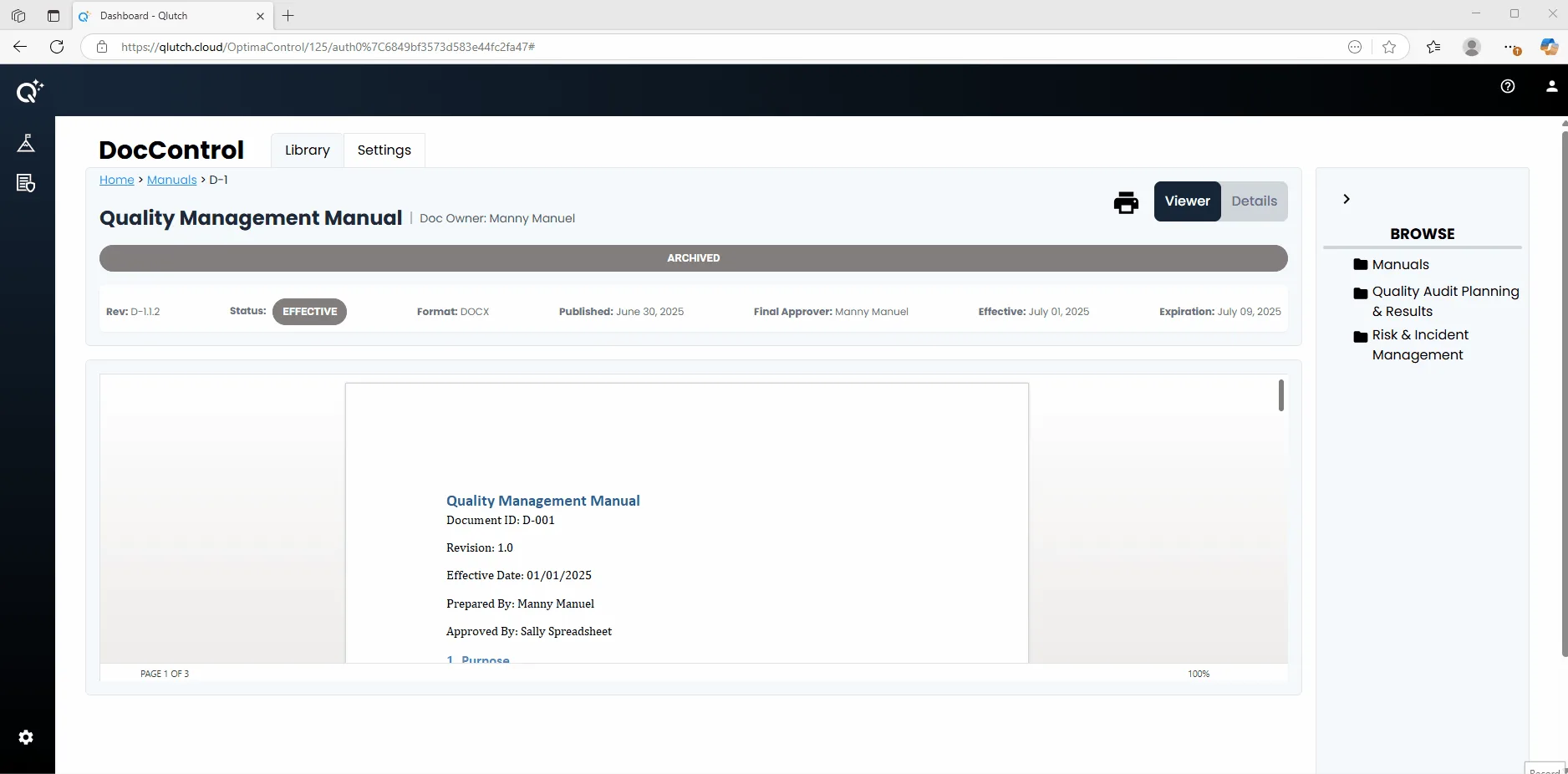
4. Verify the Archive:
Once completed, the Document will no longer appear under Current tab.
To view Archived Documents, switch to the Archived tab at the top of the Folders pane.